



Google Pay™ is a secure digital wallet from Google that lets users store card details in their Google account and use them for online payments. It allows customers to pay quickly without manually entering card information, while Lemonway processes the payment securely through the payment gateway.
1. Integrating with Google Pay™
Lemonway is a payment gateway for Google Pay™. Integrating Google Pay™ for your customers requires embedding the Google Pay™ button on your checkout page and using Lemonway to handle the payment token processing.
1.1 Web & Mobile Web
This integration covers both desktop and mobile web browsers. When a user accesses your checkout page on an Android device, Google Pay™ for Android will automatically handle the tokenization. No additional configuration is required for mobile web.
NoteThe native Android app integration is not covered in this guide.
1.2 Google Resources
Google provides extensive documentation about integrating Google Pay™. A few useful entry points are listed below:
- Google Pay web developer documentation
- Google Pay web integration checklist
- Google Pay web brand guidelines
NoteLemonway does not manage any of the external content listed as links in this documentation.
Important - Acceptable Use PolicyWhen using Google Pay™ through Lemonway, merchants must adhere to the Google Pay and Wallet API's Acceptable Use Policy and accept the terms defined in the Google Pay API Terms of Service. Acknowledgement of these terms is part of the Lemonway merchant onboarding process.
2. Getting Started
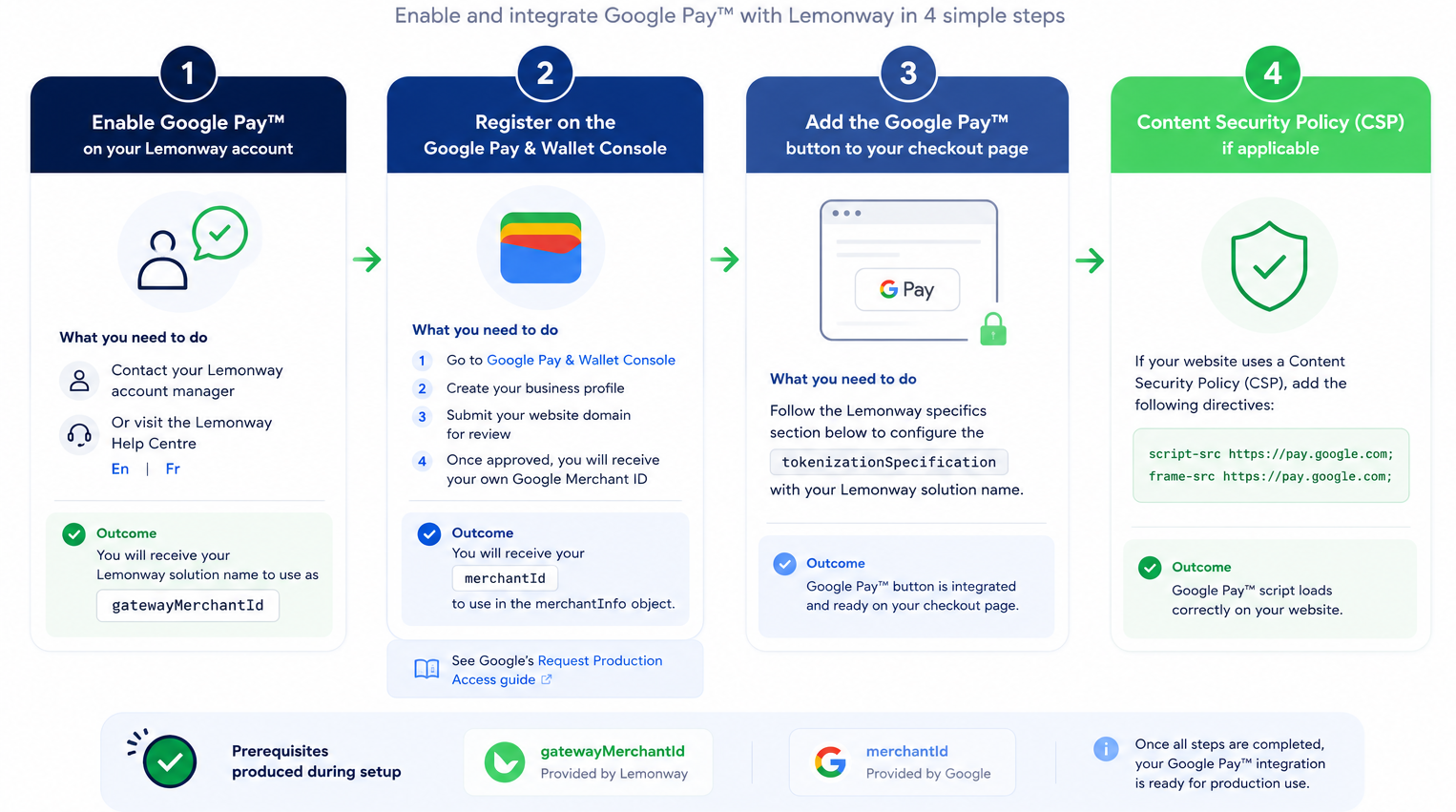
Step 1 - Enable Google Pay™ on your Lemonway account
Contact your Lemonway account manager or visit the Lemonway Help Centre (En | Fr) to activate Google Pay™ for your solution. You will receive your Lemonway solution name to use as gatewayMerchantId.
Step 2 - Register on the Google Pay & Wallet Console
To integrate the Google Pay™ button directly into your website, you'll need to register on the Google Pay & Wallet Console and have your domain approved.
- Go to the Google Pay & Wallet Console.
- Create your business profile.
- Submit your website domain for review.
- Once approved, you will receive your own Google Merchant ID to use in the
merchantInfoobject.
See: Google's Request Production Access guide.
Step 3 - Add the Google Pay™ button to your checkout page
To integrate the Google Pay™ button on your checkout page, follow the Lemonway specifics section below to configure the tokenizationSpecification with your Lemonway solution name.
Step 4 - Content Security Policy (CSP), if applicable
If your website uses a Content Security Policy (CSP), add the following directives to allow the Google Pay™ script to load correctly:
script-src https://pay.google.com;
frame-src https://pay.google.com;
3. Lemonway Specific Details
3.1 Load the Google Pay API JavaScript client library
Include a script tag on your checkout page to load the Google Pay API JavaScript client library. You must complete this step before initializing the Google Pay client.
<script async src="https://pay.google.com/gp/p/js/pay.js"
  onload="onGooglePayLoaded()">
</script>
3.2 Configure the payment request
The complete PaymentDataRequest . The object must include apiVersion, apiVersionMinor, merchantInfo, allowedPaymentMethods and transactionInfo.
{
  "apiVersion": 2,
  "apiVersionMinor": 0,
  "merchantInfo": {
    "merchantId": "<your Google Merchant ID>",
    "merchantName": "<Your business name>"
  },
  "allowedPaymentMethods": [
    {
      "type": "CARD",
      "parameters": {
        "allowedAuthMethods": [
          "PAN_ONLY",
          "CRYPTOGRAM_3DS"
        ],
        "allowedCardNetworks": [
          "AMEX",
          "DISCOVER",
          "INTERAC",
          "JCB",
          "MASTERCARD",
          "VISA"
        ]
      },
      "tokenizationSpecification": {
        "type": "PAYMENT_GATEWAY",
        "parameters": {
          "gateway": "lemonway",
          "gatewayMerchantId": "<your Lemonway solution name>"
        }
      }
    }
  ],
  "transactionInfo": {
    "totalPriceStatus": "FINAL",
    "totalPrice": "10.00",
    "currencyCode": "EUR"
  }
}| Property | Type | Required | Description |
|---|---|---|---|
apiVersion | number | Yes | Major API version. Must be 2. |
apiVersionMinor | number | Yes | Minor API version. Must be 0. |
merchantInfo.merchantId | string | Yes, Production | Your own Google Merchant ID obtained from the Google Pay & Wallet Console. |
merchantInfo.merchantName | string | Yes | Your business name as displayed in the Google Pay sheet. |
gatewayMerchantId | string | Yes | Your Lemonway solution name, provided during onboarding. |
See Google's web tutorial for more details.
3.3 Billing Address Parameters
By default, Lemonway does not require a billing address for Google Pay™ transactions. If your integration requires billing address information, you can request it by adding billingAddressRequired and billingAddressParameters to your CardParameters object.
{
  "type": "CARD",
  "parameters": {
    "allowedAuthMethods": ["PAN_ONLY", "CRYPTOGRAM_3DS"],
    "allowedCardNetworks": ["AMEX", "DISCOVER", "INTERAC", "JCB", "MASTERCARD", "VISA"],
    "billingAddressRequired": true,
    "billingAddressParameters": {
      "format": "MIN",
      "phoneNumberRequired": false
    }
  }
}| Parameter | Value | Description |
|---|---|---|
billingAddressRequired | true / false | Set to true request the billing address. |
format | "MIN" | Returns name, country code and postal code. |
format | "FULL" | Returns full billing address. |
phoneNumberRequired | true / false | Set to true request phone number. |
3.4 Settlement Country Variables
The supported authentication methods differ by country of settlement. Use allowedCountryCodes in your CardParameters to restrict accepted cards to supported settlement countries.
CRYPTOGRAM_3DS: Supported globally. No country restriction required.PAN_ONLY: Supported for card-issuing countries. Lemonway settles transactions in the European Economic Area (EEA). If you want to restrict acceptance to EEA-issued cards, use theallowedCountryCodesparameter.
{
  "type": "CARD",
  "parameters": {
    "allowedAuthMethods": ["PAN_ONLY", "CRYPTOGRAM_3DS"],
    "allowedCardNetworks": ["AMEX", "DISCOVER", "INTERAC", "JCB", "MASTERCARD", "VISA"],
    "allowedCountryCodes": [
      "AT", "BE", "BG", "CY", "CZ", "DE", "DK", "EE", "ES", "FI",
      "FR", "GB", "GR", "HR", "HU", "IE", "IS", "IT", "LI", "LT",
      "LU", "LV", "MT", "NL", "NO", "PL", "PT", "RO", "SE", "SI", "SK"
    ]
  }
}
NoteThe
allowedCountryCodesparameter is optional. When not provided, Google Pay™ accepts cards from any supported country.
4. API Endpoints
4.1 Sequence Diagram
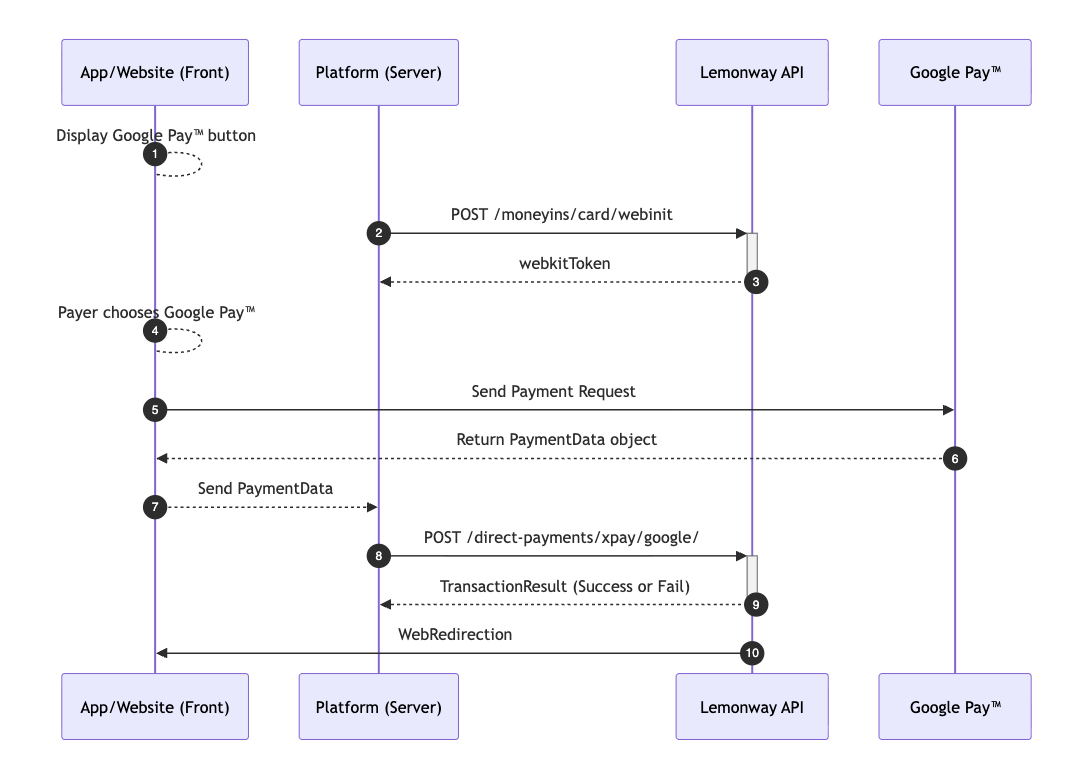
First, create a web money-in session with /moneyins/card/webinit. Lemonway returns a webkitToken. Then, after Google Pay returns the PaymentData object, send the webkitToken, checkout URL, payer name, and full Google Pay response to /direct-payments/xpay/google/.
4.2 High-Level View
4.3 Web Money-In Initiation
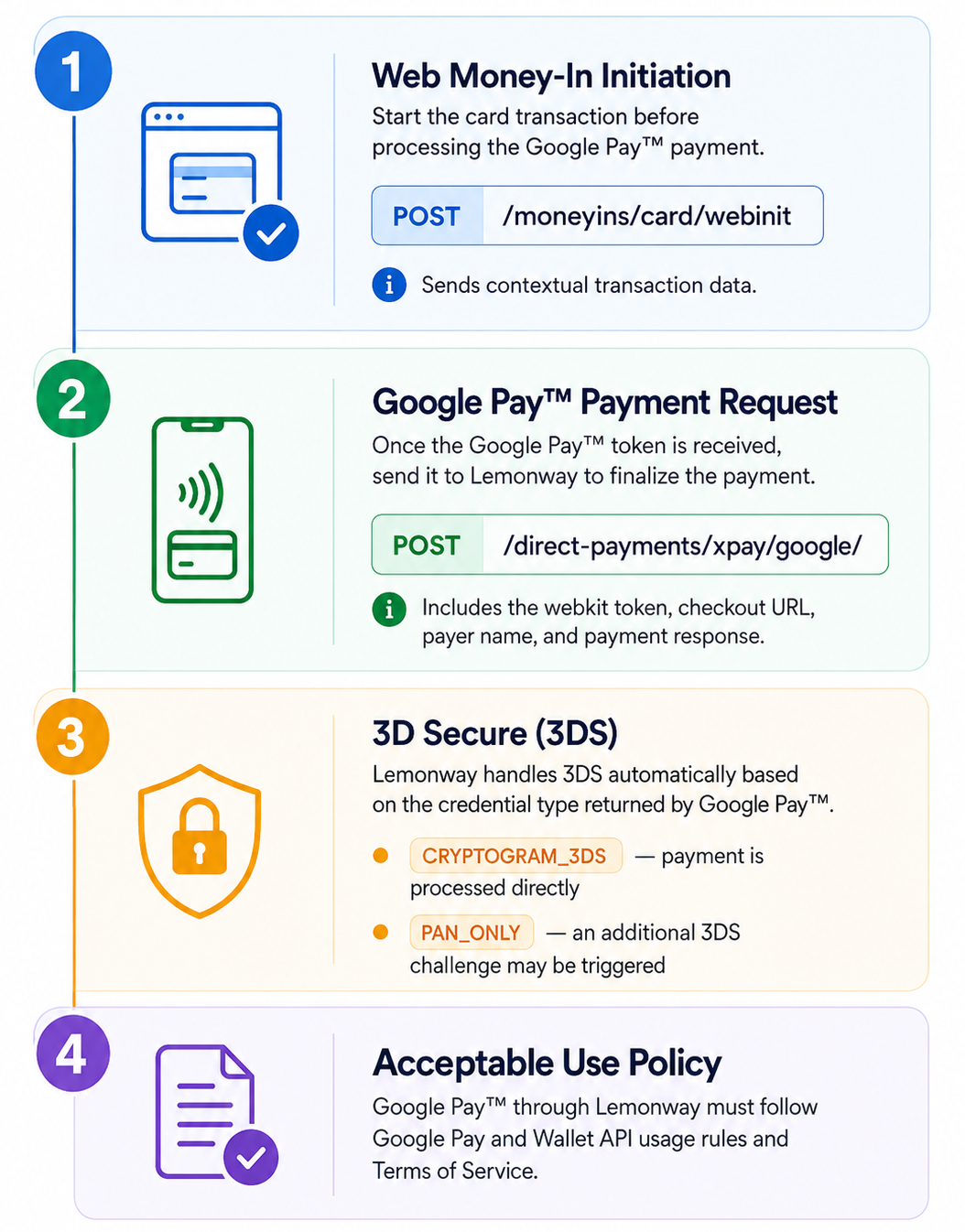
Initiate a card transaction before processing the Google Pay™ payment.
POST /moneyins/card/webinitParameters: Contextual transaction data.
4.4 Google Pay™ Payment Request
Once you receive the Google Pay™ token, send it to Lemonway to finalize the payment.
POST /direct-payments/xpay/google/4.5 Parameters
| Parameter | Required | Description |
|---|---|---|
webkitToken | Yes | Lemonway session token returned by /moneyins/card/webinit. |
merchantCheckoutUrl | Yes | URL of the merchant's checkout page. |
payerName | Yes | Name of the payer. |
rawPaymentResponse | Yes | Full PaymentData object returned by Google Pay™. |
partnerDecryptedPaymentData | Optional | Decrypted payment data, if applicable. |
Example
paymentsClient.loadPaymentData(paymentDataRequest)
  .then(paymentData => {
    fetch("/direct-payments/xpay/google/", {
      method: "POST",
      headers: { "Content-Type": "application/json" },
      body: JSON.stringify({
        webkitToken: "<your webkit token>",
        merchantCheckoutUrl: "https://www.your-merchant-site.com/checkout",
        payerName: "John Doe",
        rawPaymentResponse: paymentData
      })
    });
  });
4.6 3D Secure (3DS)
Lemonway automatically handles 3DS based on the credential type returned by Google Pay™:
CRYPTOGRAM_3DS: 3DS is already performed by Google. Lemonway processes the payment directly with no additional challenge.PAN_ONLY: Lemonway automatically triggers a step-up 3DS authentication before processing the payment. The customer may be prompted with a 3DS challenge.
No additional configuration is required to enable 3DS for Google Pay™ transactions.
4.7 Acceptable Use Policy
By using Google Pay™ through Lemonway, you must adhere to the Google Pay and Wallet API's Acceptable Use Policy and accept the Google Pay API Terms of Service.
5. FAQs
Does this integration cover native Android apps?
No. This guide covers Google Pay™ integration for desktop and mobile web checkout. Native Android app integration is not covered in this guide.
What is the difference between merchantInfo.merchantId and gatewayMerchantId?
merchantInfo.merchantId and gatewayMerchantId?merchantInfo.merchantId is your Google Merchant ID. You receive it after registering and validating your domain in the Google Pay & Wallet Console.
gatewayMerchantId is your Lemonway solution name. Lemonway provides it when Google Pay™ is activated on your Lemonway account.
Do I need to activate Google Pay™ with Lemonway before integrating it?
Yes. You must contact your Lemonway account manager or the Lemonway Help Centre to activate Google Pay™ for your solution before processing Google Pay™ payments.
Do I need to register with Google?
Yes. To display the Google Pay™ button on your checkout page, you must register in the Google Pay & Wallet Console, create your business profile, and submit your website domain for approval.
What should I send to Lemonway after the customer confirms the Google Pay™ payment?
After Google Pay™ returns the PaymentData object, send it to Lemonway using the /direct-payments/xpay/google/ endpoint. The request must include the webkitToken, merchantCheckoutUrl, payerName, and rawPaymentResponse.
What is rawPaymentResponse?
rawPaymentResponse?rawPaymentResponse is the full PaymentData object returned by Google Pay™ after the customer confirms the payment. It must be sent to Lemonway so the payment can be processed.
Is the billing address required?
No. Lemonway does not require a billing address by default for Google Pay™ transactions. If your integration requires billing address information, you can request it in the Google Pay™ CardParameters object.
Does Lemonway handle 3DS?
Yes. Lemonway automatically handles 3DS depending on the credential type returned by Google Pay™.
For CRYPTOGRAM_3DS, authentication has already been performed by Google Pay™. For PAN_ONLY, Lemonway may trigger a step-up 3DS authentication before processing the payment.
Do I need extra configuration to enable 3DS?
No. No additional configuration is required to enable 3DS for Google Pay™ transactions through Lemonway.
What should I do if my website uses a Content Security Policy?
If your website uses a Content Security Policy, make sure that Google Pay™ is allowed in your CSP configuration by adding the required script-src and frame-src directives for https://pay.google.com.
Need help?
Visit our Help Centre (https://support.lemonway.com/hc/fr) or reach out to your dedicated account manager to activate Google Pay™ and get your solution name.